Sign X PDF · Guides
How to merge, sign, and compress a PDF in your browser
You can merge PDFs, remove extra pages, add a visible signature, and compress the result in the Sign X PDF browser tools. Processing stays on your device: the selected PDF is handled locally in the browser and is not uploaded to Sign X PDF servers. No install and no account are required.
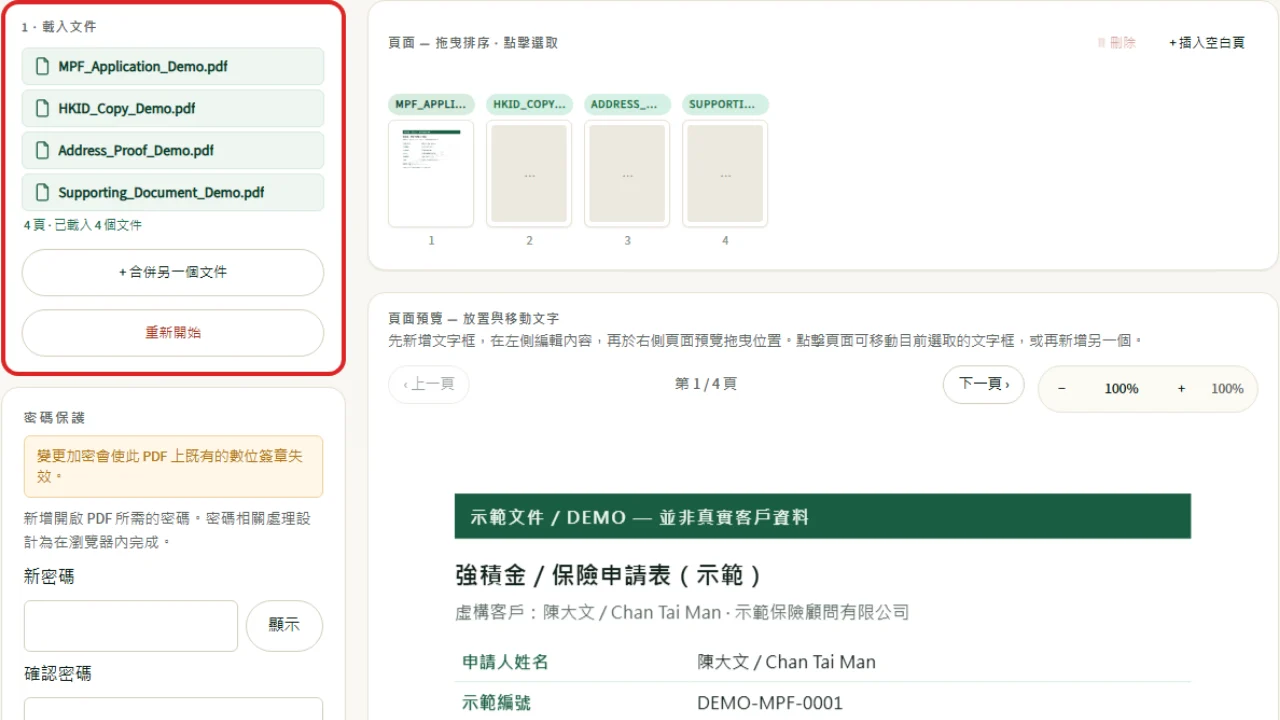
Step 1: Merge separate PDFs into one file
Open the merge tool and add the PDFs you want to combine. Drag the files into the order you need, then export one merged PDF.
Keep related pages together before you sign or compress. That way you only review and save one file.
Step 2: Delete blank pages and reorder the rest
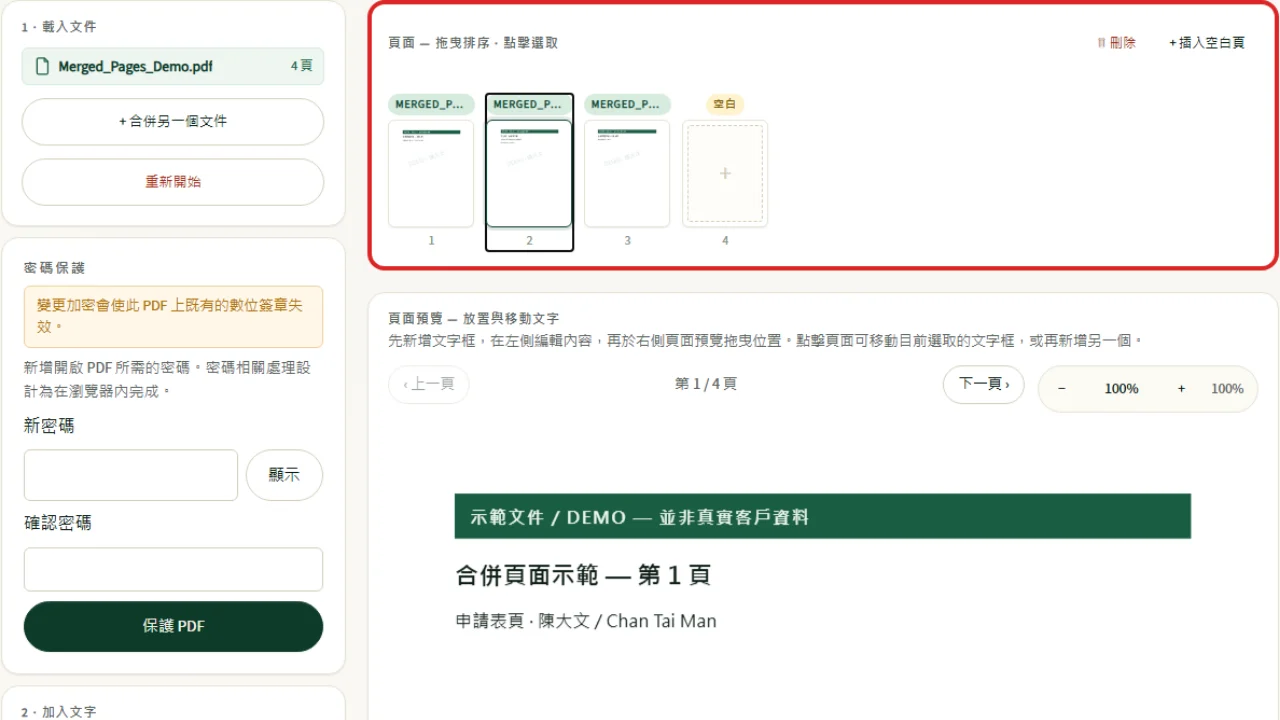
After merging, scan the thumbnails for blank pages, duplicates, or pages in the wrong order.
Use delete pages to remove what you do not need, and drag thumbnails to fix the sequence. Save a new PDF when the set looks right.
Step 3: Add a visible signature
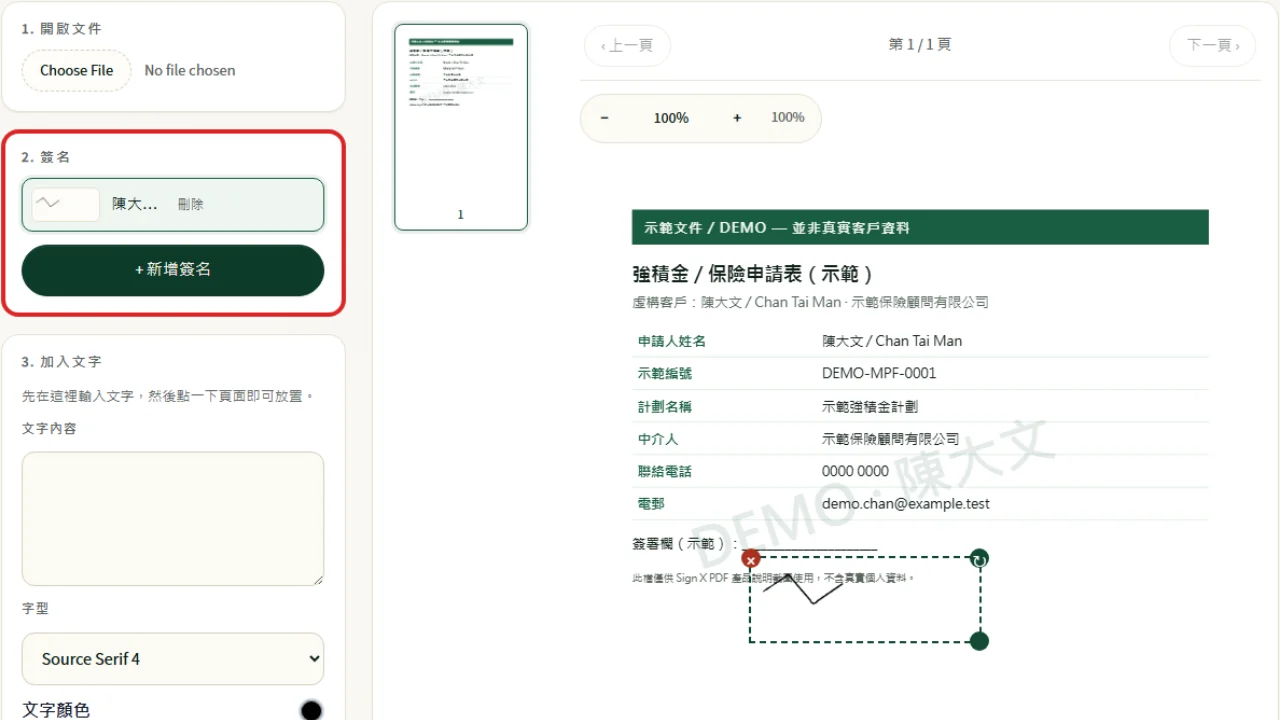
If the document needs a visible sign-off, open the sign tool. Draw, type, or place a signature image, then move and resize it on the page.
This places a visible mark. It is not a certificate-backed digital signature. If the recipient requires their own signing portal, use that process instead.
Step 4: Compress the PDF if the file is too large
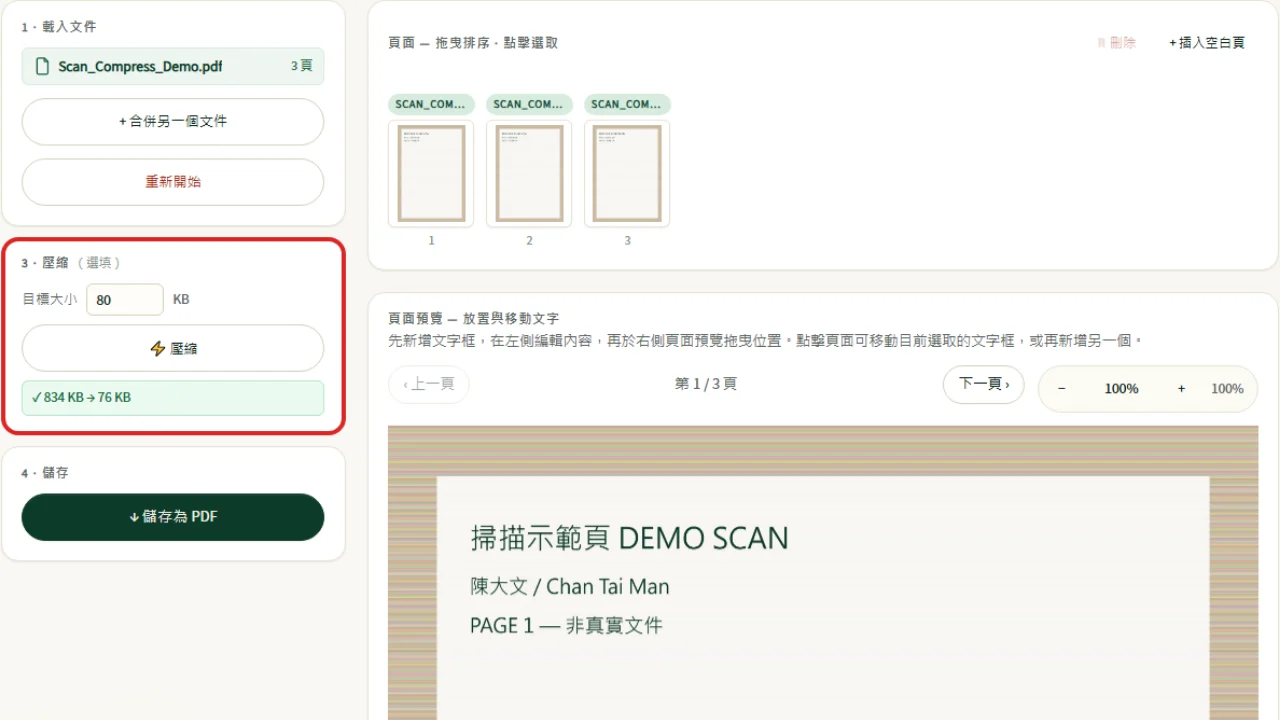
If a portal, email, or upload form rejects the file as too large, run compress and check the new size.
Open the compressed PDF and confirm names, numbers, small text, and any signature are still readable before you send it. How much the file shrinks depends on the content.
A short checklist before you send the file
Before you submit or email the PDF:
- Are the right documents in one file, in the right order?
- Did you remove blank, duplicate, or unrelated pages?
- If a visible signature is needed, is it on the correct page?
- If you compressed the file, is the text still clear?
FAQ
Q1 Do I need to install software or create an account?
A1 No. Open the tool in a browser, choose a file, and save the result to your device.
Q2 Are my PDFs uploaded when I merge, sign, or compress them?
A2 No. These workflows are designed to run locally in your browser. The selected PDF is not uploaded to Sign X PDF servers for processing.
Q3 Is a drawn signature the same as a digital signature?
A3 No. Sign X PDF places a visible signature. A certificate-backed digital signature uses cryptography and is a different product.
Q4 Will compression always reach a specific file size?
A4 Not always. Image-heavy scans usually shrink more than text PDFs. The tool reports the size it actually achieved.